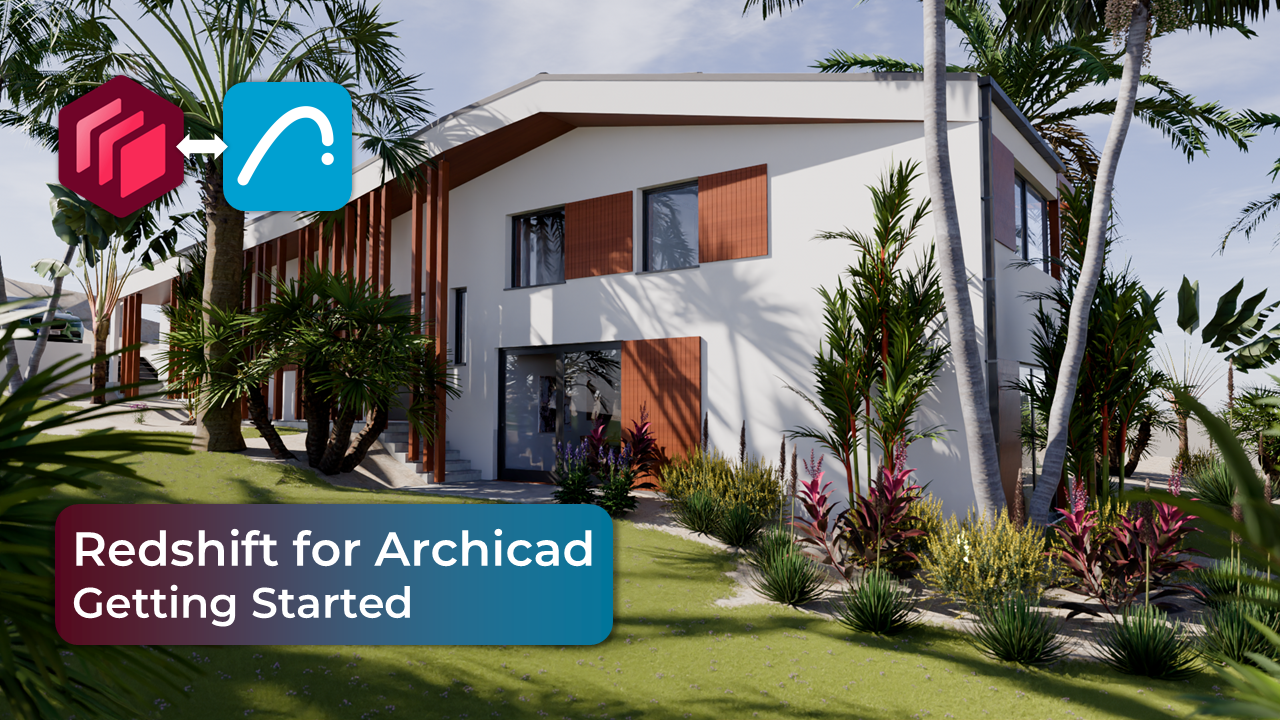
Redshift for Archicad: Beyond the Rendering
Oct 23, 2026Most rendering workflows start the same way: finish the model, export it, and rebuild half of it somewhere else. Every design change after that means another export and another round of fixes.
Redshift for Archicad skips that loop. It opens a live, ray-traced view right next to your Archicad model, and the two stay connected. I recently produced the official Redshift for Archicad tutorial for Maxon's Cineversity, with just a few days of hands-on time before recording. That says as much about the learning curve as anything in this post. This post is the part the tutorial doesn't have room for: why it matters for Archicad users, and how to set up your model so Redshift works for you instead of against you.
Since recording, it's sunk in how far this workflow can go, especially once the light fixtures (lamps) in your construction documents start driving what you see in Redshift.
A live connection, not an export
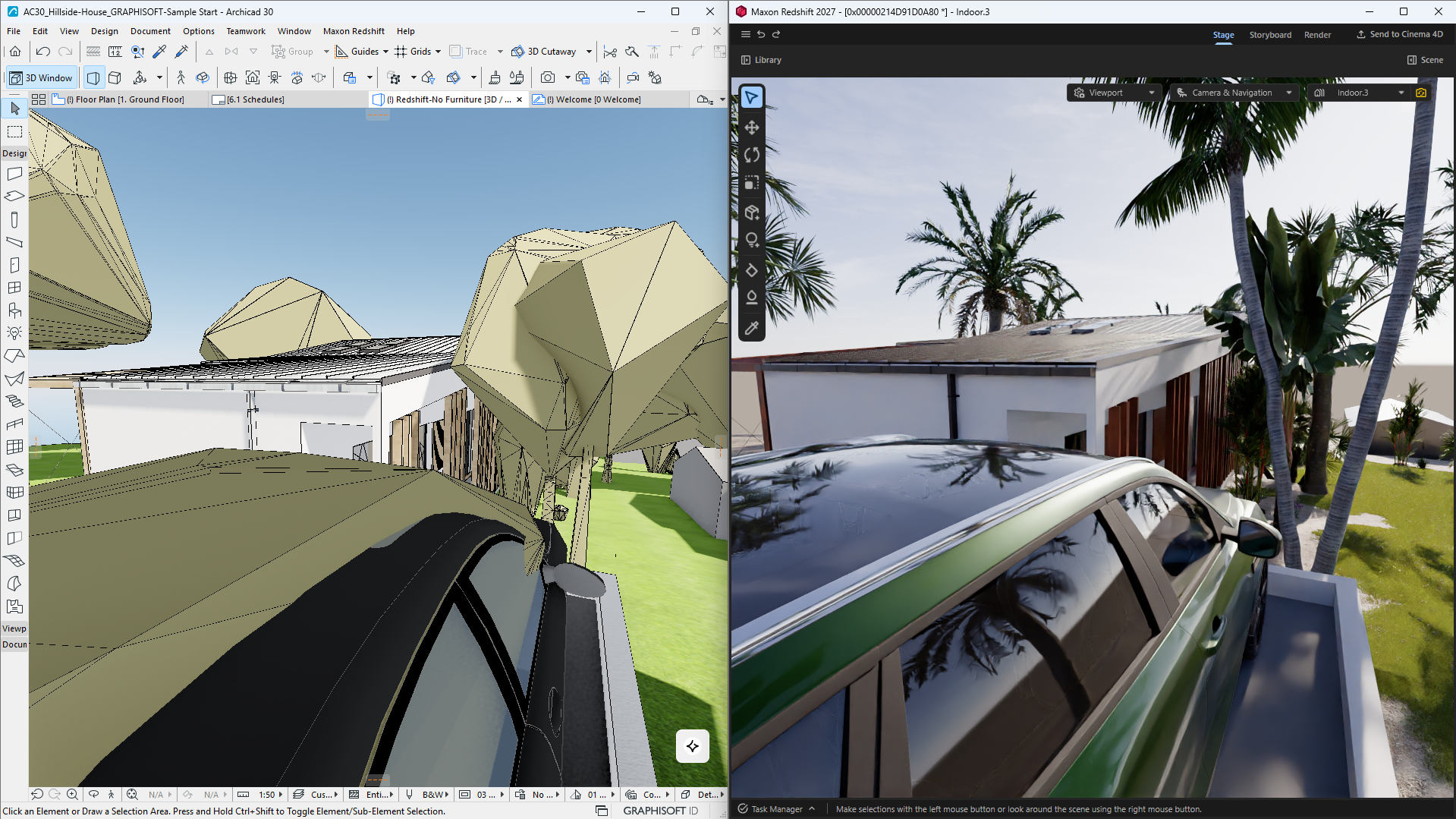
The first thing to understand is that Redshift for Archicad isn't a separate application you send your model to. You start a connection from your Archicad project, and the Redshift viewer becomes a window into that model.
That changes a few things in practice:
- Changes flow through immediately. Edit geometry, switch a saved view, or turn a lamp on in Archicad, and Redshift updates on the spot.
- Your work lives in the Archicad file. Materials, scatters, and placed assets are saved when you save the .pln. There's no second project file to manage or lose.
- The camera can follow you. Navigate in Archicad and Redshift follows, or set it bidirectional so moving in either one moves both. Design on one screen, present on the other.
For a BIM workflow, that last point is bigger than it sounds. The model stays the single source of truth. Redshift is a view of it, not a copy.
What makes Redshift different
Most real-time visualization tools grew up from interactive graphics and have been adding realism over time. Redshift came from the other direction. It started as a GPU production renderer for film, broadcast, and motion graphics, and Maxon has since built a real-time engine from the same technology.
In the Archicad integration you work with two sides of it:
- Redshift Live is the real-time engine you see while working. It's ray-traced and runs on your GPU, so reflections, glass, and bounced light behave the way they should while you move around.
- Redshift Production is the final-quality renderer. Add a saved view to the render queue, switch to Production, and raise the settings for your final images.
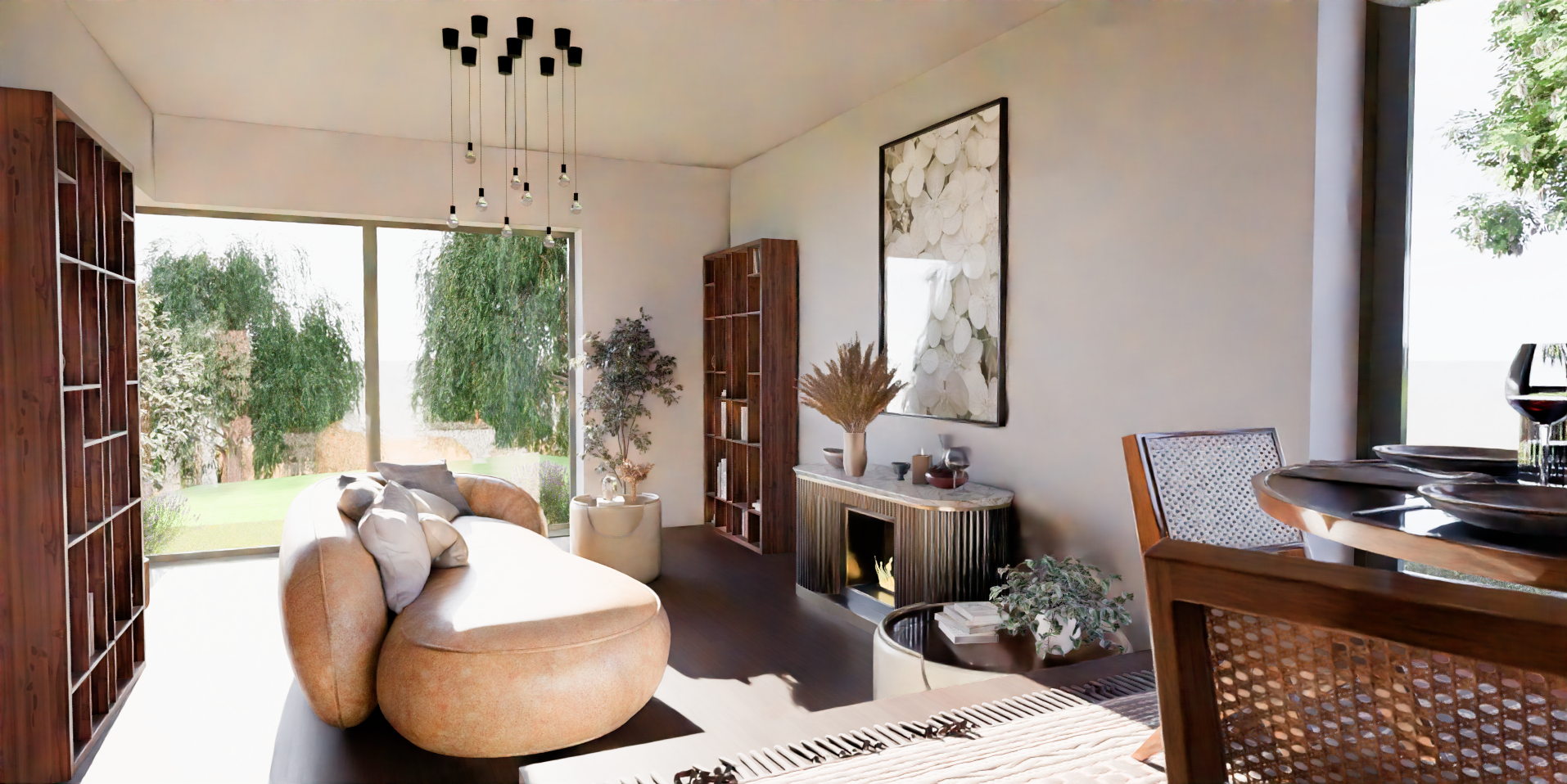
The part that matters most to me as a BIM person is accuracy. Redshift's physical sun reads your project location, and Archicad lamps carry through as real lights. A shadow study or a night view isn't just a pretty picture. It's a reasonable representation of what the building will actually do, and that makes it useful for design decisions, not just marketing.
You'll see this the moment the connection opens. The lighting already looks far better than the Archicad viewport, but the materials are still the ones coming from Archicad, and they lack physical appearance. That's expected. Replacing them with Redshift materials (Material Override) is where the scene really comes to life.
Set up Archicad first
Because Redshift reads your live model, the quality of your Archicad setup shows up directly in Redshift. A clean model gets you a great scene quickly; a messy one means fighting it. Four things make the biggest difference.
1. Use saved views as your filter
When you activate a saved view in Archicad, Redshift updates to match. Build a few views for rendering: one with no furniture, one with library trees hidden, one with lighting layers isolated. Swapping Archicad furniture for high-quality Redshift assets then takes one click instead of hiding items one at a time.
Redshift has its own Views too, and they're more than cameras. A Redshift View is a snapshot of the entire scene: furniture layout, material assignments, and time of day. Save a few variations and you can flip between design options in front of a client.
2. Break Surfaces out by purpose
Material Override replaces an Archicad Surface everywhere it's used. If one wood Surface covers your siding, trim, decking, and cabinets, they all change together. Give each real-world application its own Surface in Archicad and you get precise control in Redshift. This is good modeling practice anyway; Redshift just makes the payoff obvious.
The same thinking applies to scatters. Drag a lawn preset straight onto a surface in the viewport and Redshift creates the scatter with that surface already selected. Turn on Align for grass so it follows the slope (leave it off for trees, which grow straight up). If your terrain is built from several pieces, drag the preset onto each one.
3. Set lamps in real-world units
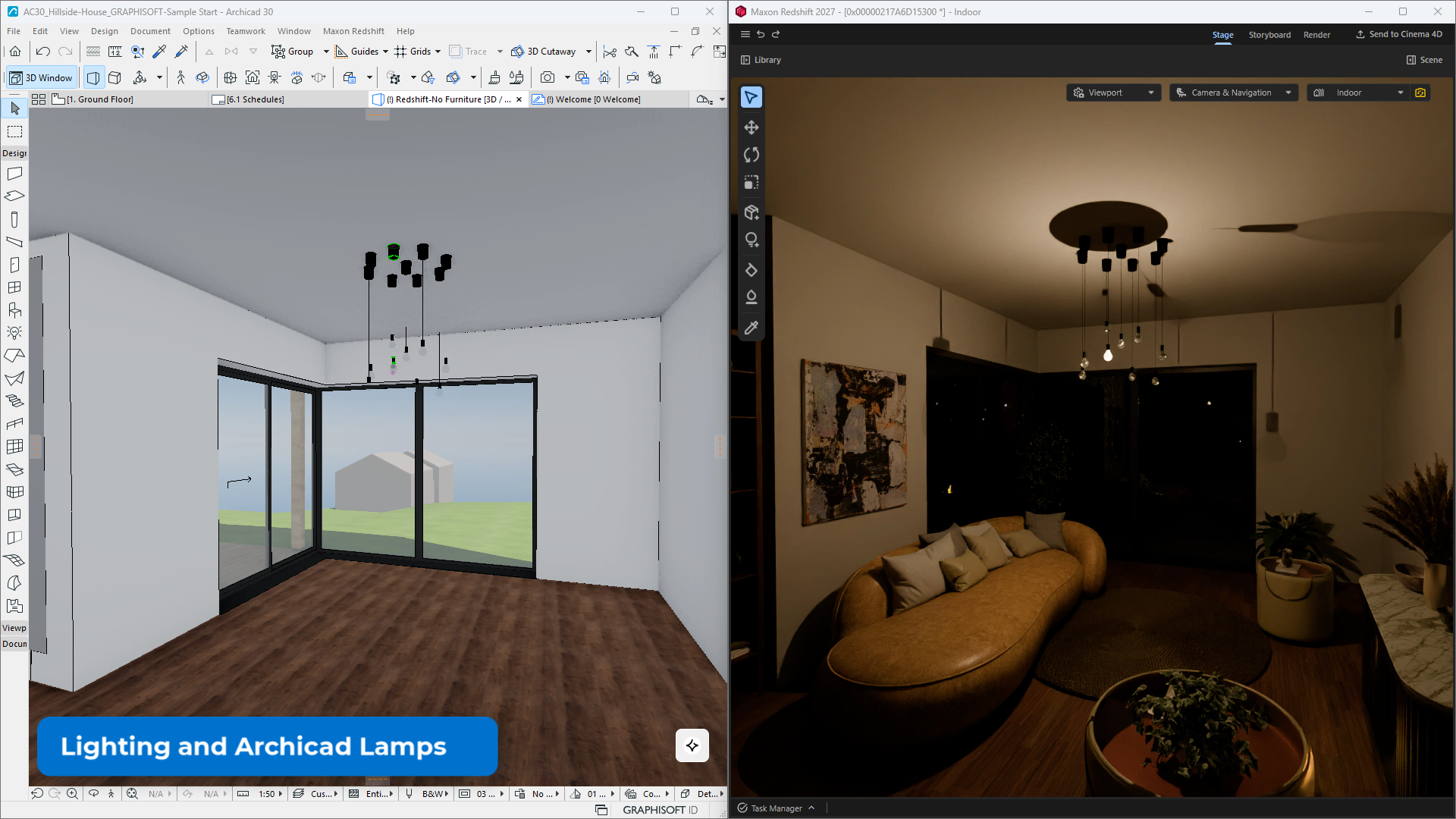
Archicad lamps come through as Redshift lights. Turn a lamp on or off, or change its color and intensity in Archicad's Lamp settings, and Redshift updates immediately. Keep lamps on dedicated layers so you can switch lighting scenarios with a view.
More important: Redshift is physically based, so lamp values should be too. Turn on Absolute Light Intensity in the Lamp settings and enter real output in lumens or candelas, ideally from the fixture's data sheet. A percentage slider tells Redshift nothing about how bright the fixture actually is. More on this below.
4. Get North and location right
Redshift's sun reads your project location, so set it properly in Archicad. One thing to note: North is measured differently in the two programs. A North offset of 0° in Redshift corresponds to 90° in Archicad's Location settings. Check it once and your shadows will be correct for the site.
Note - If you set the same time and day, the shadows should be exactly the same. If they are not, double check your North offset.
And one habit to build: save the Archicad file before you terminate the connection. That's where your Redshift work lives.
Your construction set is your lighting model
This is the part that excites me most, and it's bigger than rendering.
In a well-built Archicad project, the lamps on your reflected ceiling plan and electrical plan aren't just symbols. They're objects with data: fixture type, location, and, if you set them up properly, real output in lumens and color temperature. That same data feeds your fixture schedules.
Redshift turns that data into something you can see. Because it's physically based, the light in a room responds to:
- The fixtures you actually specified, at their real output
- The finishes on walls, ceilings, and floors, since a white ceiling and a dark wood floor reflect very different amounts of light
- Daylight through the windows and openings you designed, at the real sun angle for your site
So the objects that make up your permit and construction drawings now extend into a visual check of how the space will feel. Is the kitchen bright enough with the downlights on the plan? Does the dark flooring swallow the light? Does the room need another fixture before the electrician wires it?
One honest caveat: Redshift is a visualizer, not a lighting calculation tool. It won't replace photometric analysis or code compliance work. What it gives you is a physically based preview driven by your actual documentation data, which is a far more useful design check than a render where every lamp is a guess.
I'll go deeper on this workflow, from schedules to fixture objects to Redshift, in a future article.
Why your lamp values may be lying to you
Here's the catch that trips almost everyone up: turn on a lamp in a dark room and Redshift lights it up beautifully, whether that lamp is 20 lumens or 2,000.
The reason is auto exposure. Like a phone camera, Redshift's camera rescales the image until it looks well lit, which hides whether your lamp values are right. Auto exposure is great while you're building a scene, but it makes absolute brightness unreadable.
Getting lamp values you can trust comes down to three things:
- Set lamps in real units: Absolute Light Intensity on, lumens from the data sheet.
- Lock the camera exposure: switch to manual and leave it alone while you compare lamps.
- Prove it with a step test: render the same view at 1x, 4x, and 16x the lumens. Each step should be clearly brighter.
In our next tutorial, we'll walk through all of it, including the unit conversions, a lamp reference table, and target light levels for different rooms:
Dialing In Archicad Lamp Settings for Accurate Redshift Lighting. (Coming soon)
First impressions
What stood out:
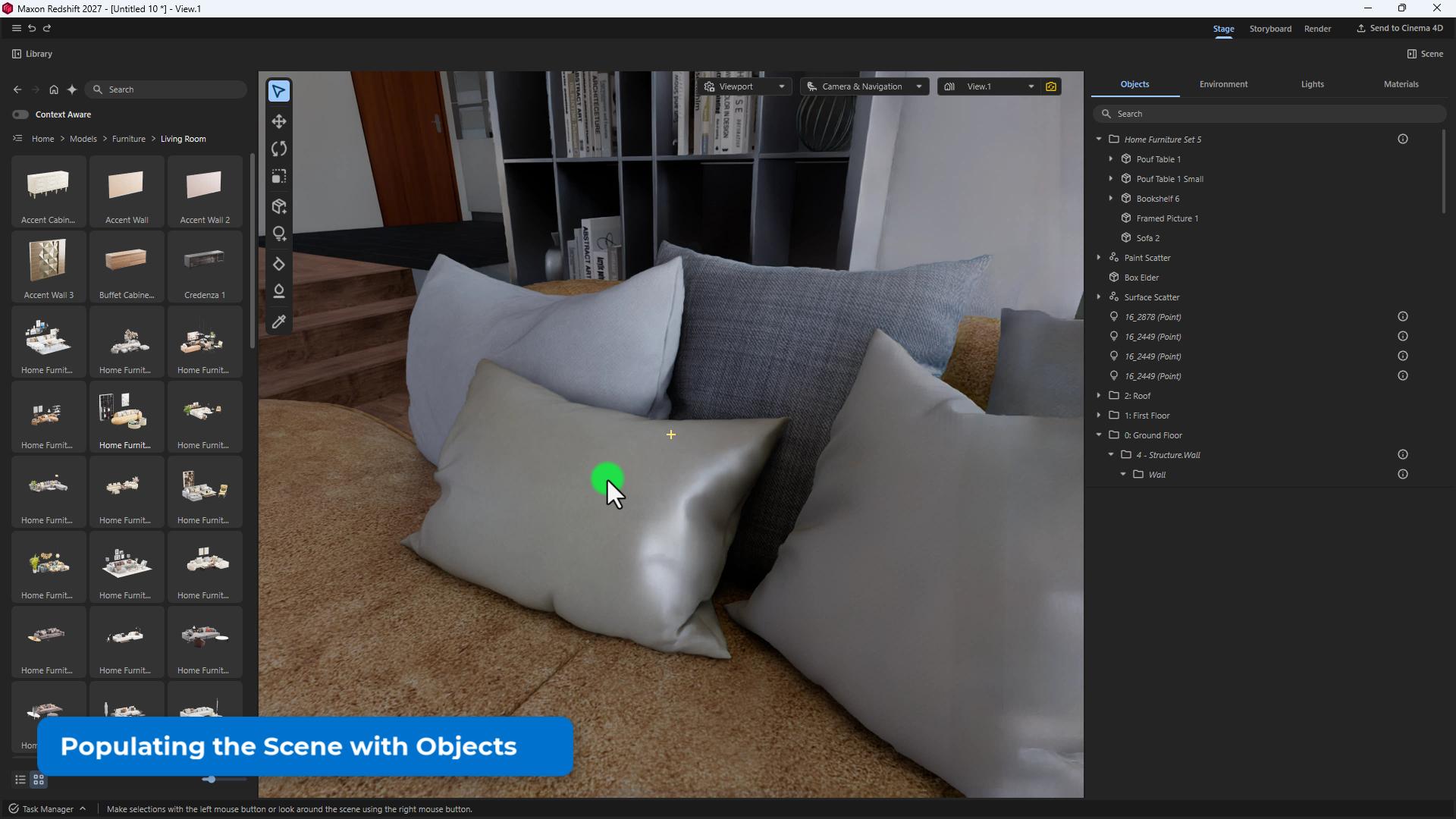
- Speed. Going from an Archicad model to a dressed, lit, ray-traced scene took minutes, not an afternoon.
- It feels connected. Toggling a lamp or a saved view in Archicad and watching Redshift respond is the moment it clicks.
- The library is strong. Materials, grass and tree scatters, furniture, and vehicles are high quality and drag-and-drop. Overriding the glass alone transforms a view.
- Views as design options. Saving whole-scene snapshots, not just cameras, makes comparing options with a client easy.
- Lighting from Archicad. Tuning lights with the lamp settings I already use is a genuine workflow win.
What to know going in:
- You need a capable GPU. On Windows, an RTX card with at least 8 GB of memory; I recorded on an RTX 5080 (16 GB). On Mac, macOS Tahoe 2026.3 on an M3 Pro, M4 Pro, or higher. The better the hardware, the better the experience.
- The defaults are good. Viewport settings are well optimized out of the box; upscaling is the main one worth knowing about.
- Assets download on first use. The first time you place a tree or material from the library, give it a moment.
- Placement happens in Archicad. Redshift's move tools apply to the assets you add from its library. Archicad geometry is moved in Archicad, which is how it should be.
- Good lighting needs good inputs. Interiors at night are where sloppy lamp values show. Dusk, with some exterior lights, is a forgiving place to start; precise interior night scenes need real-world lamp values.
- Start with your own project. The best way to learn it is to connect a model you know well and start overriding materials.
Watch the full tutorial
The full walkthrough covers starting the connection, navigation, viewport and camera settings, materials, scatters, furniture, vehicles, and lighting with Archicad lamps.
- Watch on Cineversity: https://cineversity.maxon.net/en/tutorials/redshift-for-archicad-getting-started-with-redshift
- Learn more about Redshift for Architects: https://www.maxon.net/en/redshift-for-architects
- Download the Graphisoft Sample File: https://community.graphisoft.com/t5/Sample-projects/bg-p/sampleprojects
- Next: Dialing In Archicad Lamp Settings for Accurate Redshift Lighting
If you want your Archicad model set up so tools like Redshift work cleanly from day one, with purpose-built Surfaces, organized layers, and rendering-ready views, that's exactly what CB2.0 is built for.
Disclosure: I produced the Redshift for Archicad tutorial for Maxon's Cineversity as a paid engagement. The views here are my own.
Stay connected with news and updates!
Join our mailing list to receive the latest news and updates from our team.
Don't worry, your information will not be shared.
We hate SPAM. We will never sell your information, for any reason.